
You can use any compatible IPTV app or player to access our service. This beginner’s tutorial uses IPTV Smarters (free), IBO Player Pro, and TiviMate as examples.
How to Set Up IPTV on Fire TV Stick
Set Up IPTV Smarters on Fire TV Stick
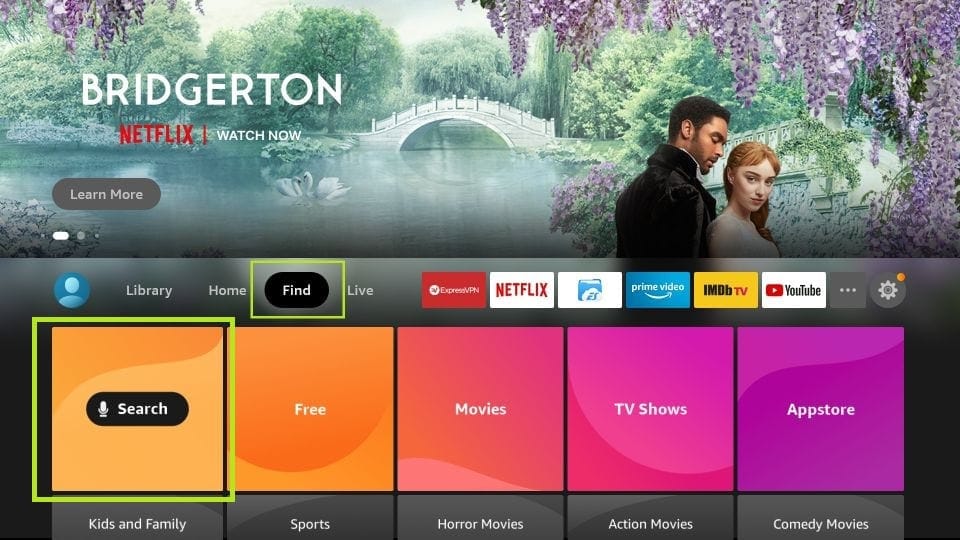
From the home screen of your device, hover over the Find option.
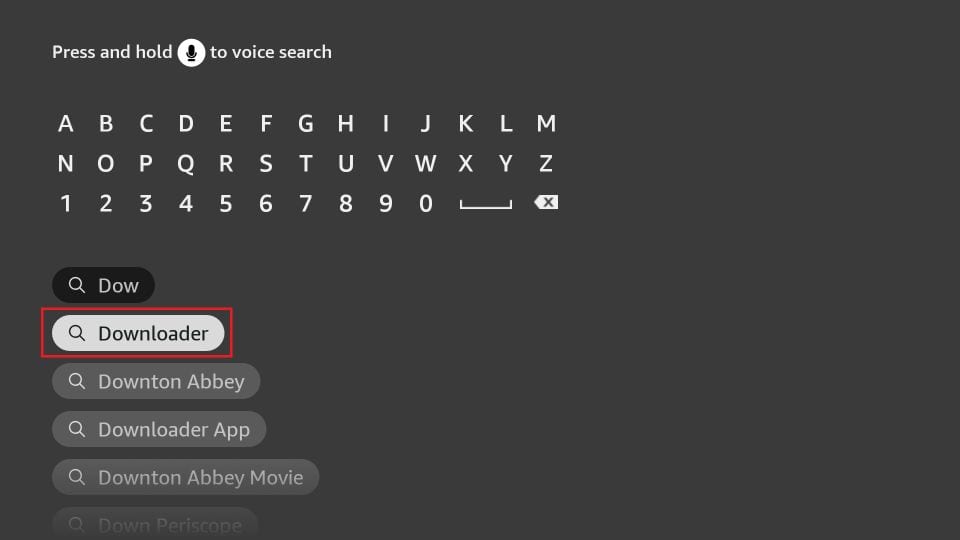
1. First, install the Downloader app. It lets you sideload IPTV Smarters on Fire TV Stick, because browser downloads are not allowed.
2. Click Find > Search on the home screen of your Fire TV Stick.
3. Type Downloader and select it from the search results. Choose the Downloader icon on the next screen, then download and install the app.
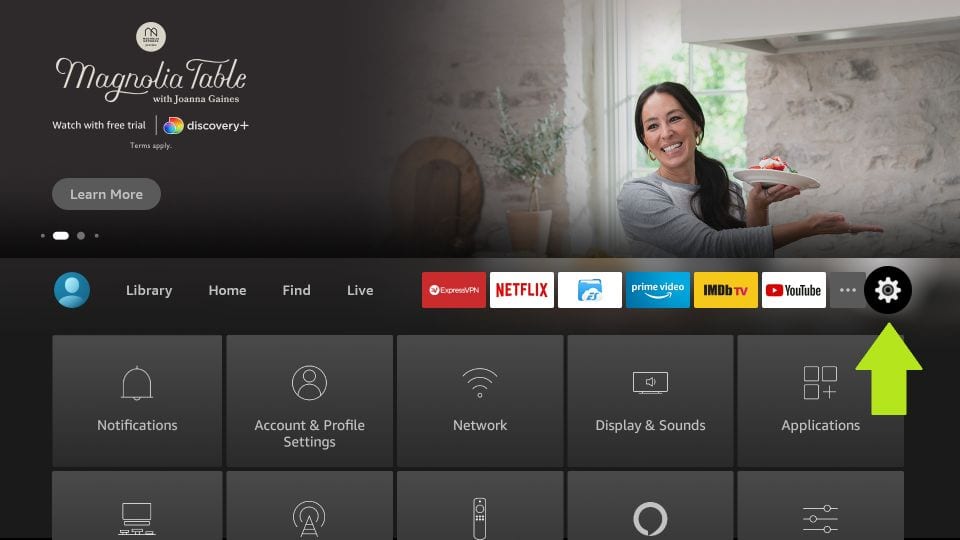
4. Return to the home screen and click Settings in the menu bar.
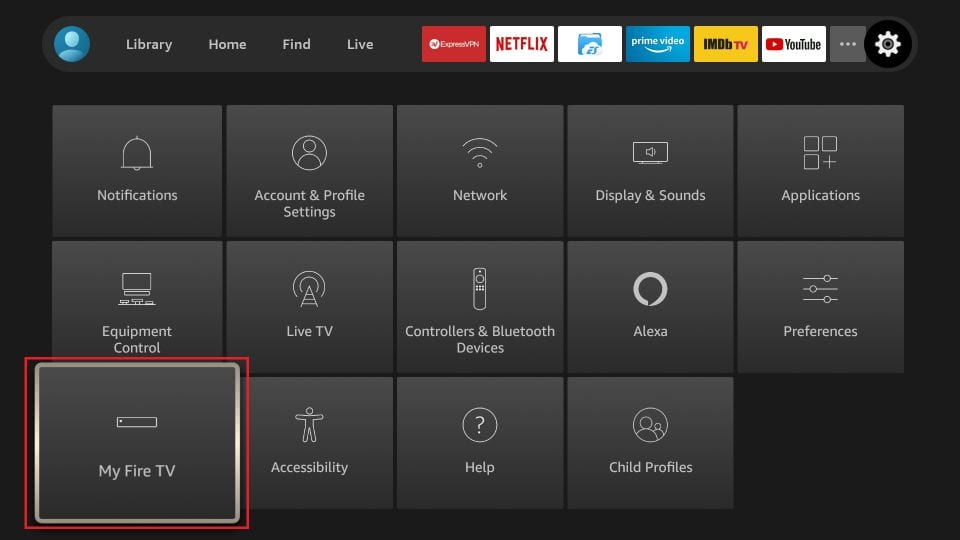
5. In Settings, choose My Fire TV.
6. On the next screen, click Developer Options.
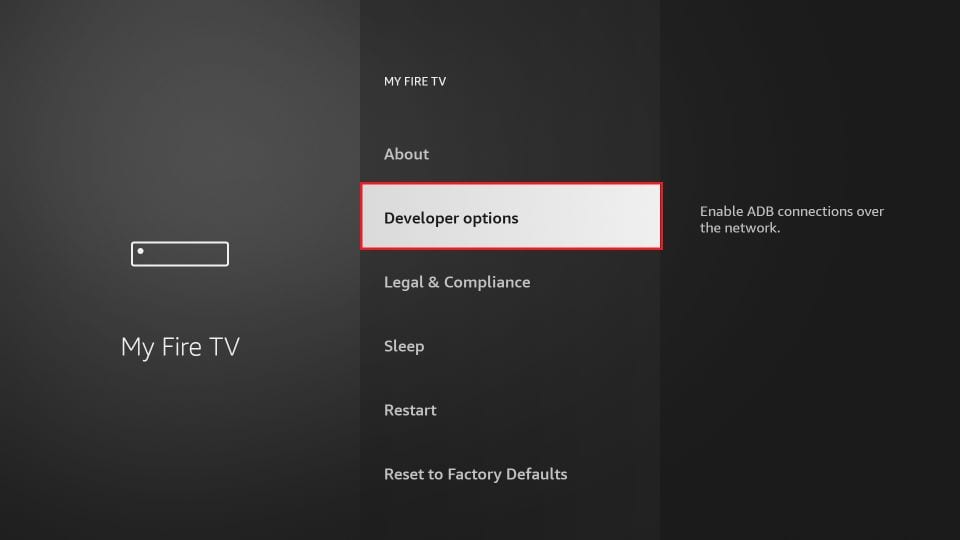
7. Click Install from unknown apps.
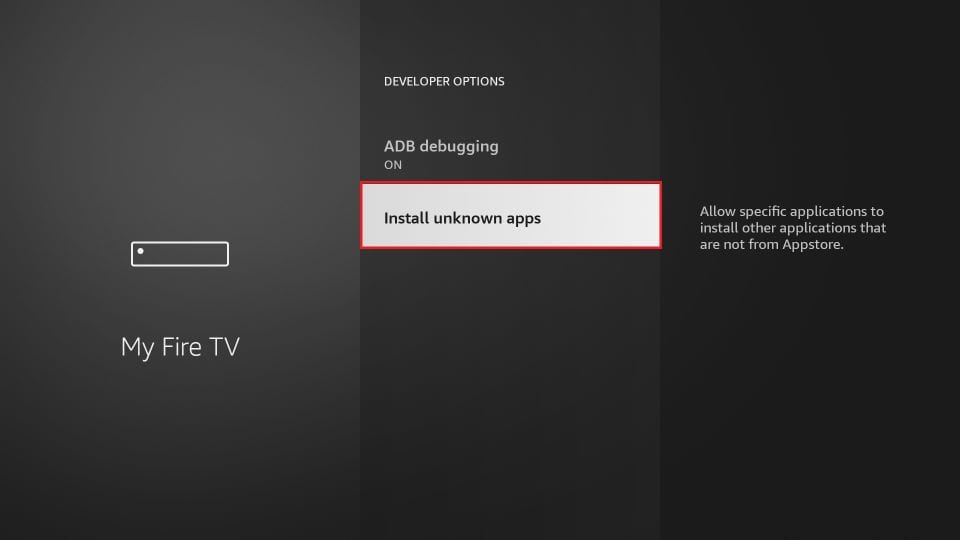
8. Click Downloader to change its status to ON.
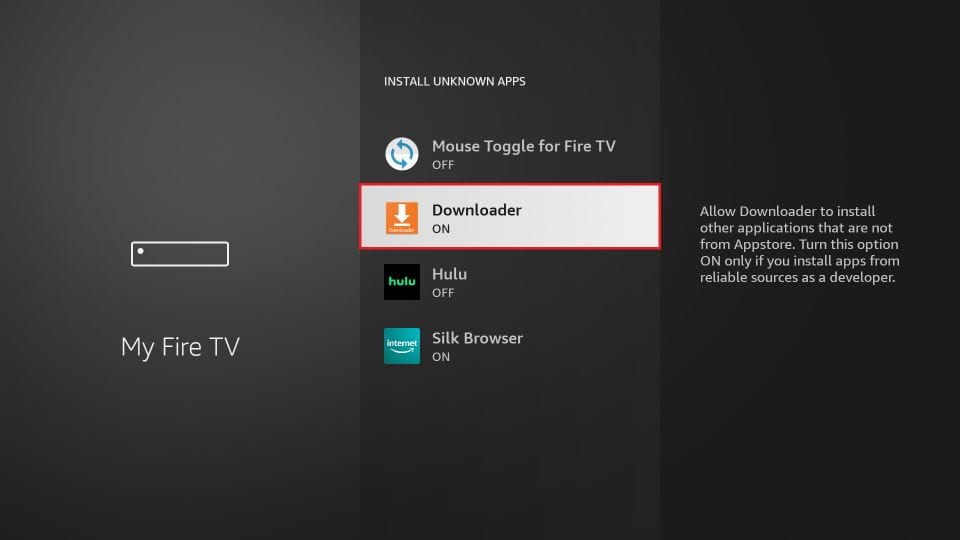
Your Fire TV Stick is now set up to install IPTV Smarters and other third-party apps. Follow the steps below.
9. Open the Downloader app. On first launch, dismiss the prompts until you see the main screen. Make sure Home is selected in the left menu, then click the URL box on the right (it shows http://).
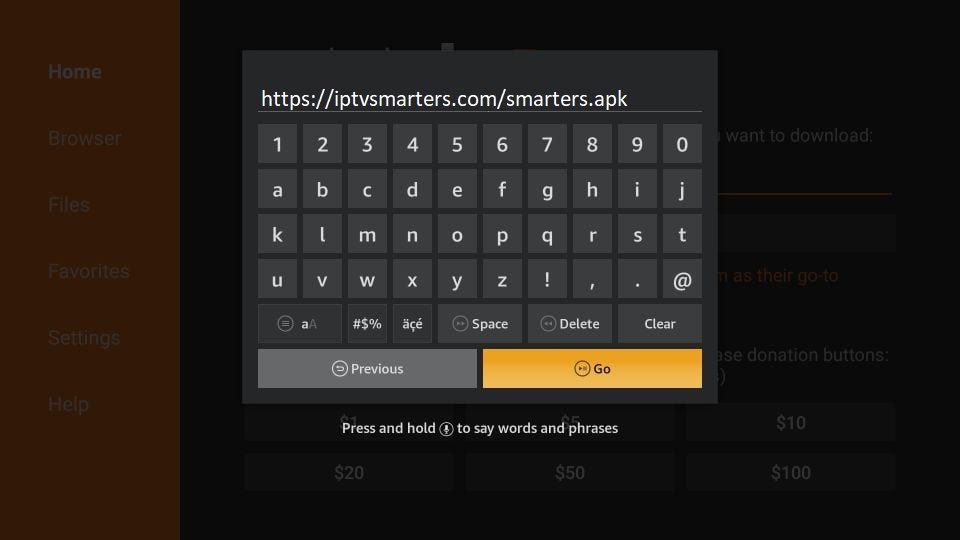
10. Enter the following URL and click GO:
https://iptvsmarters.com/smarters.apk
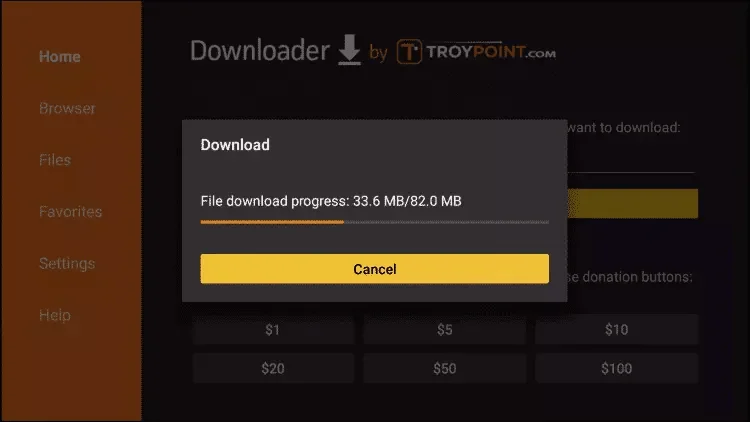
11. Wait a minute or two while IPTV Smarters downloads to your Fire TV Stick.
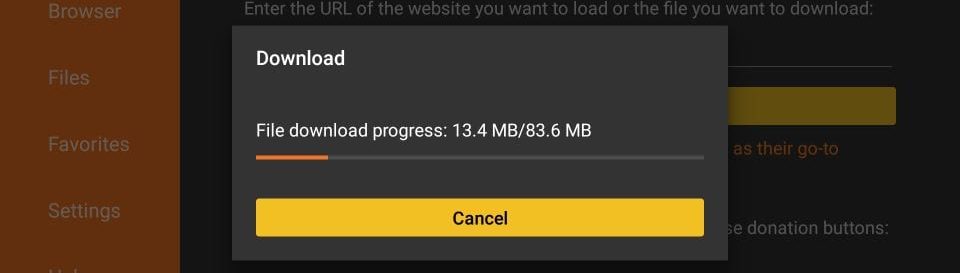
12. When the download completes, the installation starts automatically. Click Install.
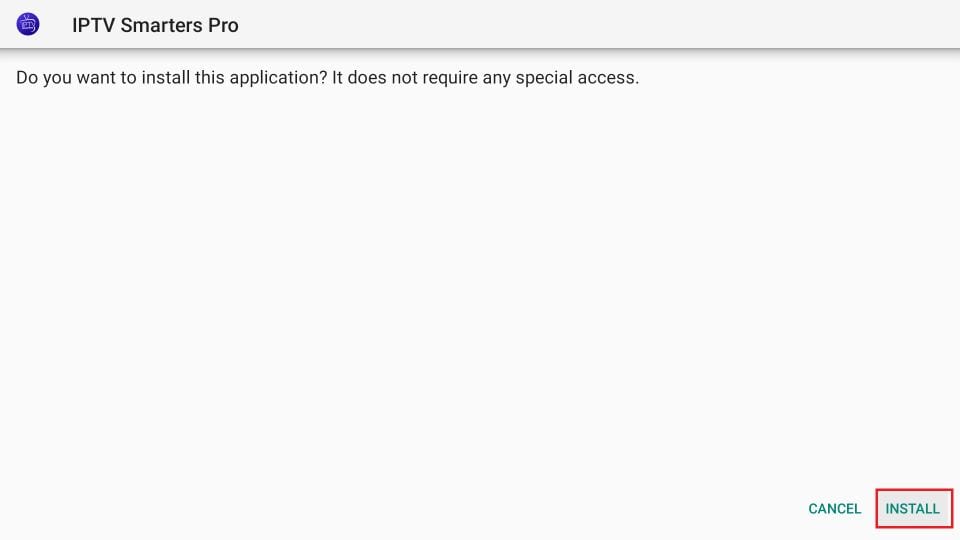
13. Wait for the installation to finish.
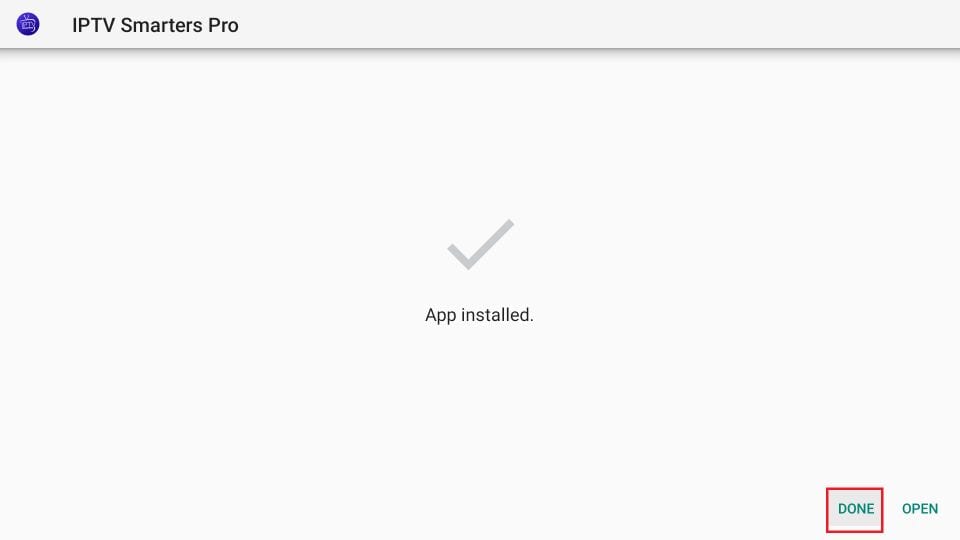
14. You will see the App installed notification. Click OPEN to start right away, or click DONE (recommended) so you can delete the APK file and save storage.
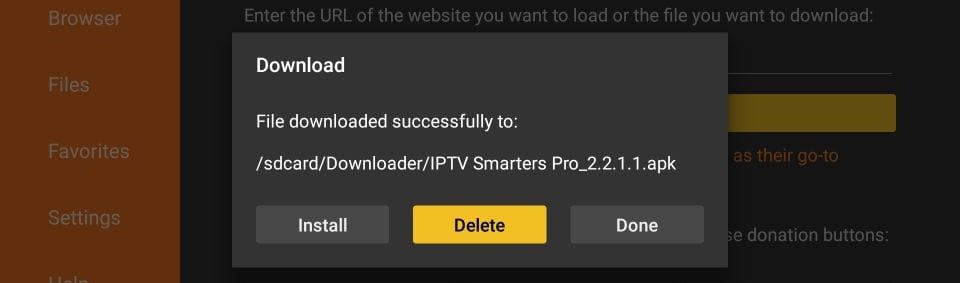
15. If you clicked DONE, you return to Downloader. Click Delete.
You now have IPTV Smarters on your Fire TV Stick.
Launch IPTV Smarters: go to Your Apps & Channels, or press and hold the Home button and select Apps.
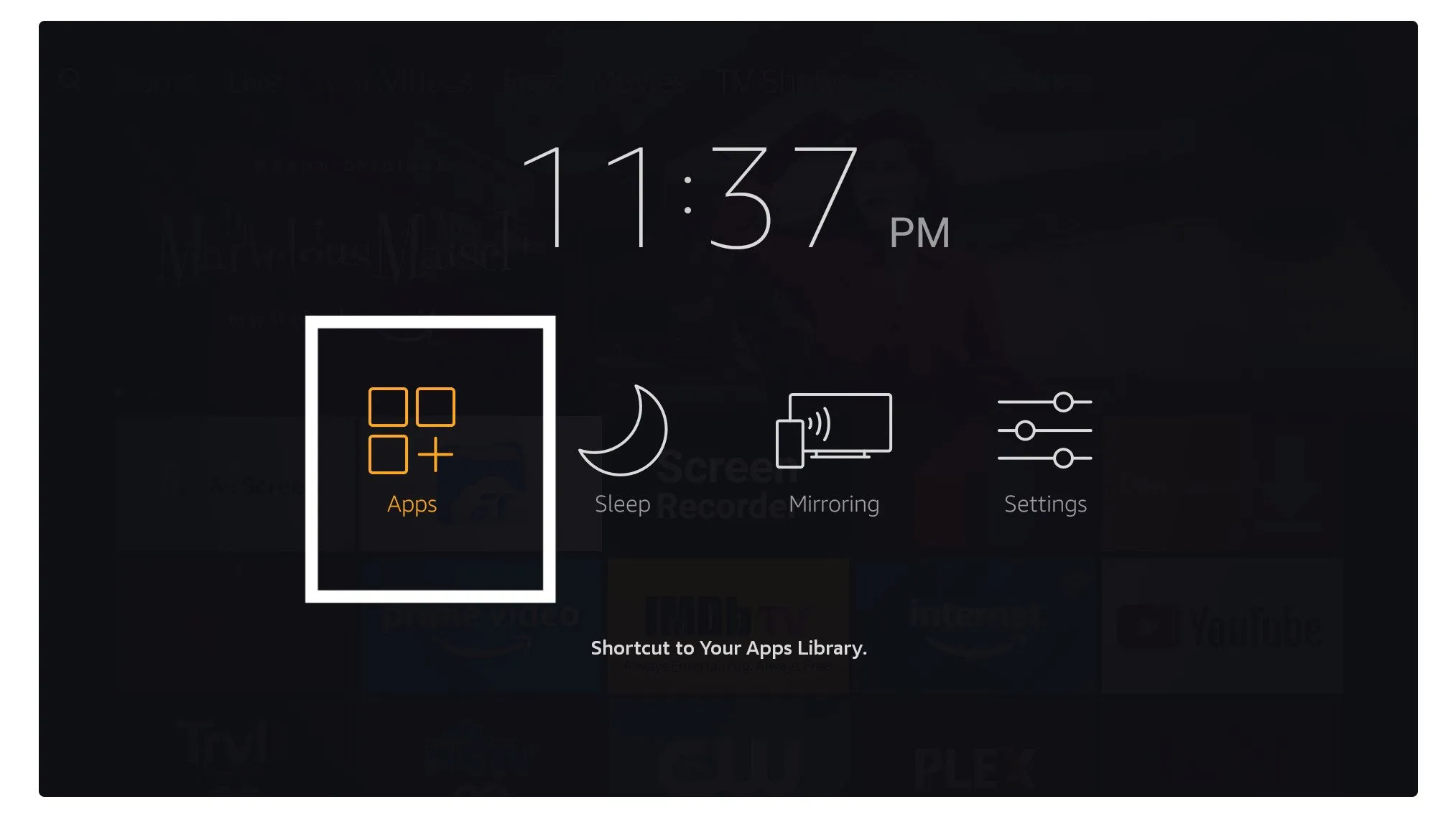
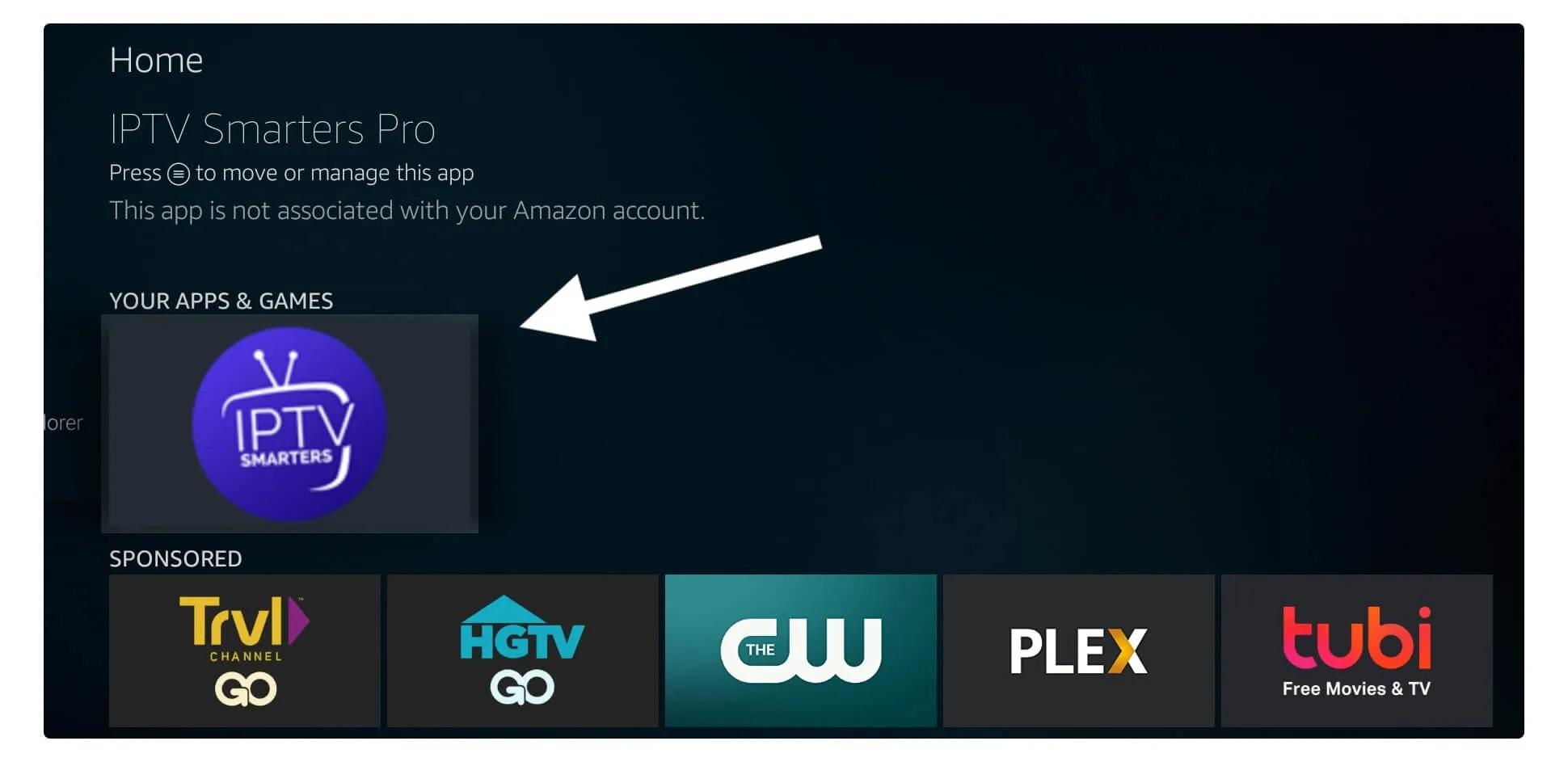
Scroll down. The app appears at the bottom of the list. Press select to launch it.
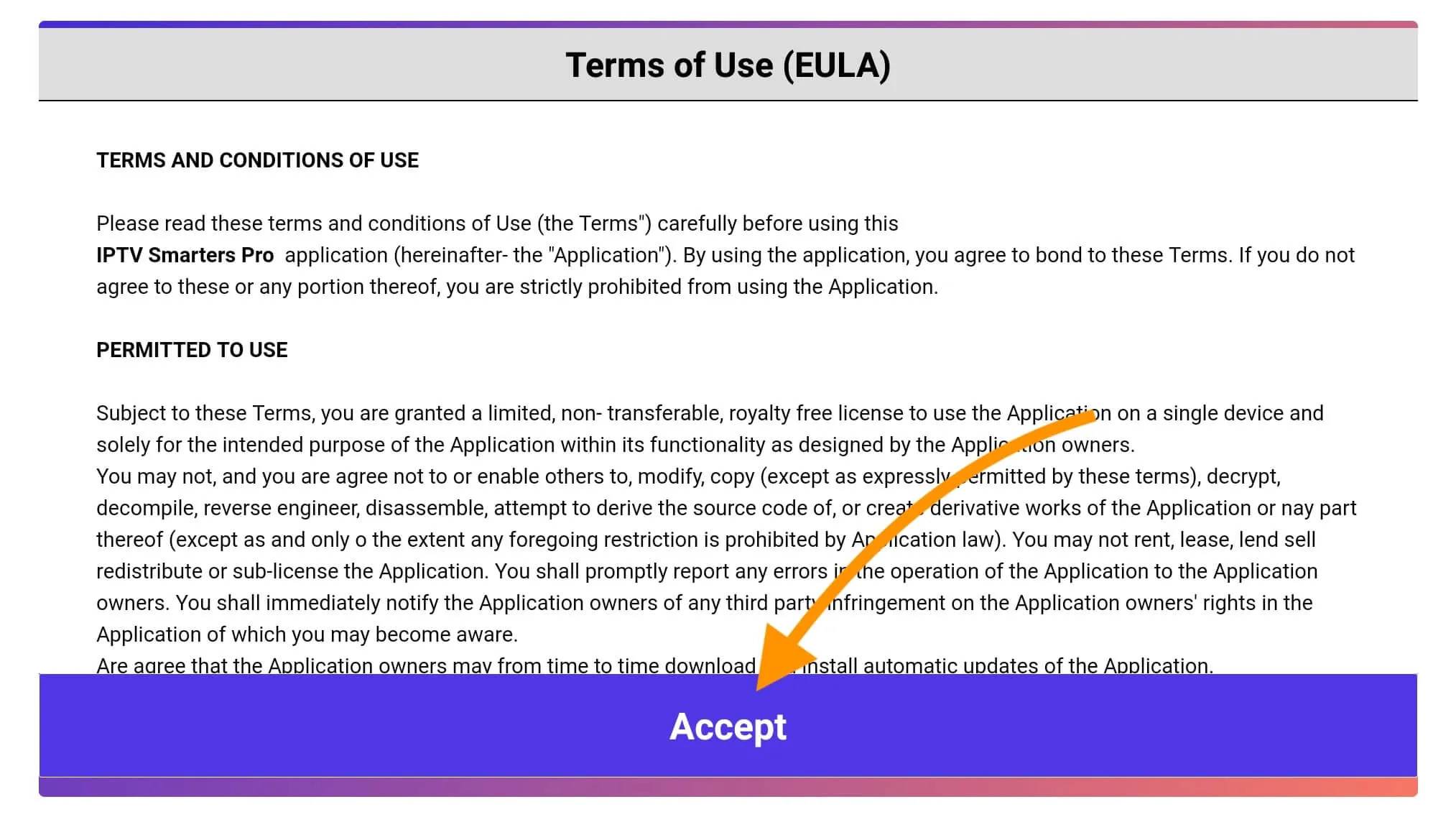
On first launch, click Accept to agree to the user agreement.
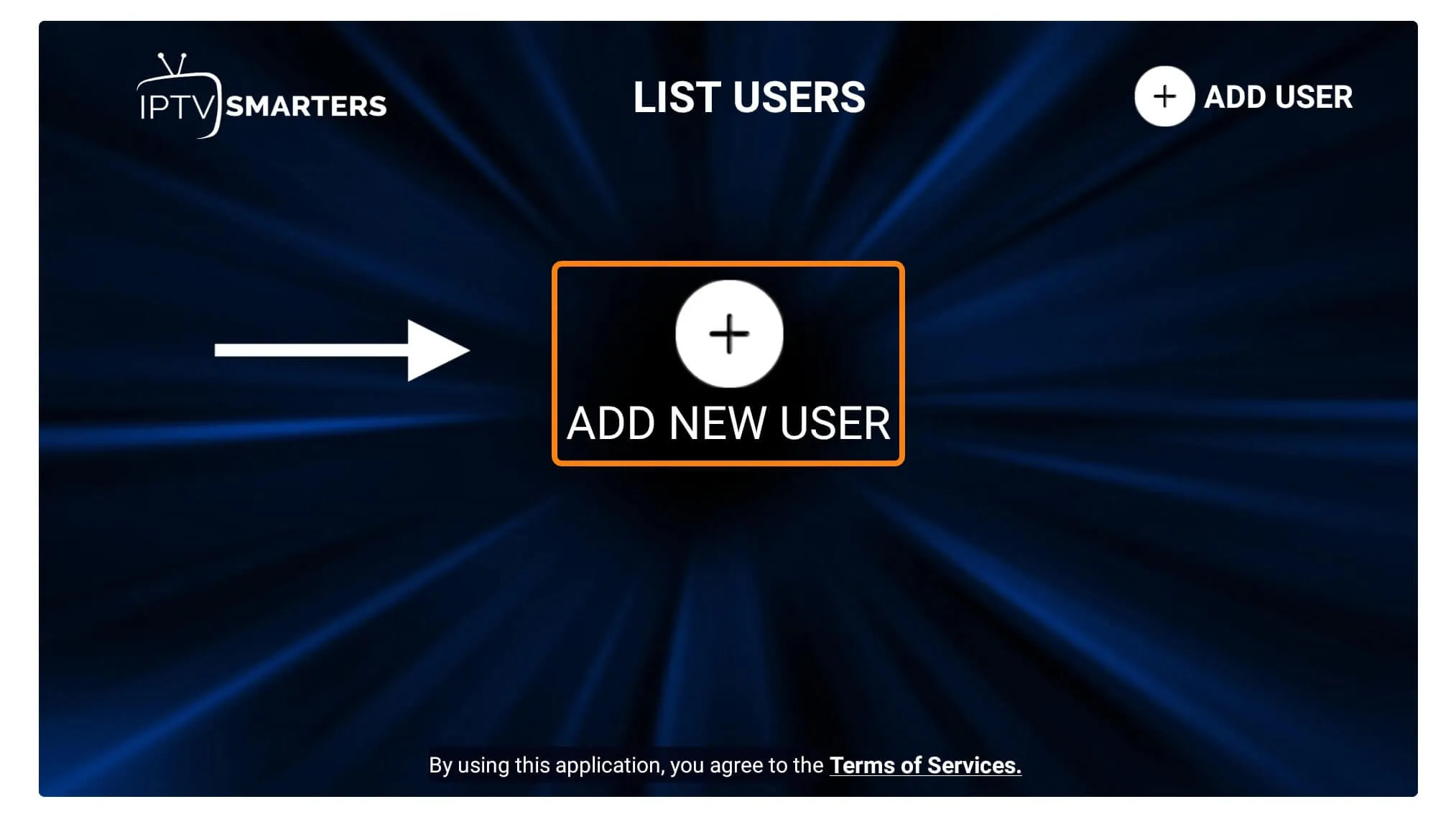
Click Add User.
Choose Login with Xtream Codes API, the fastest method.
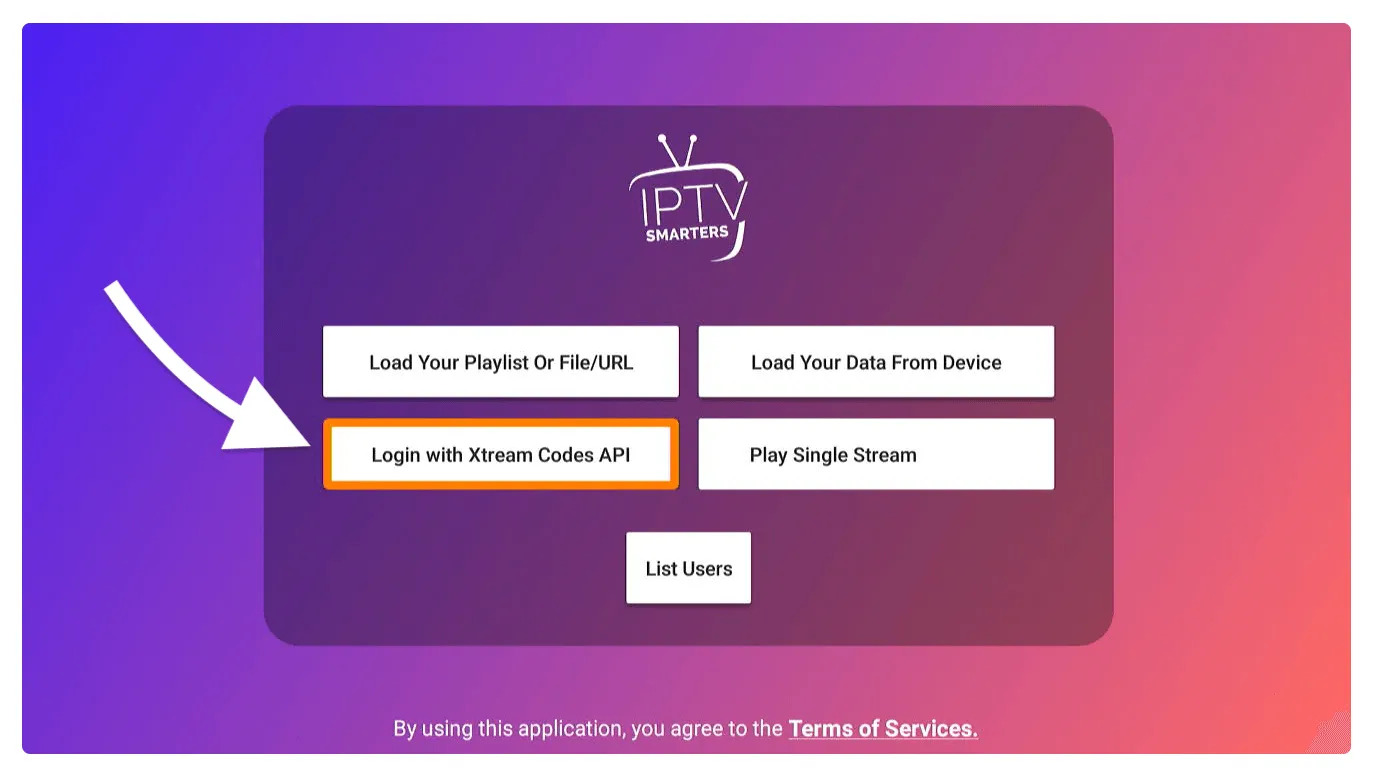
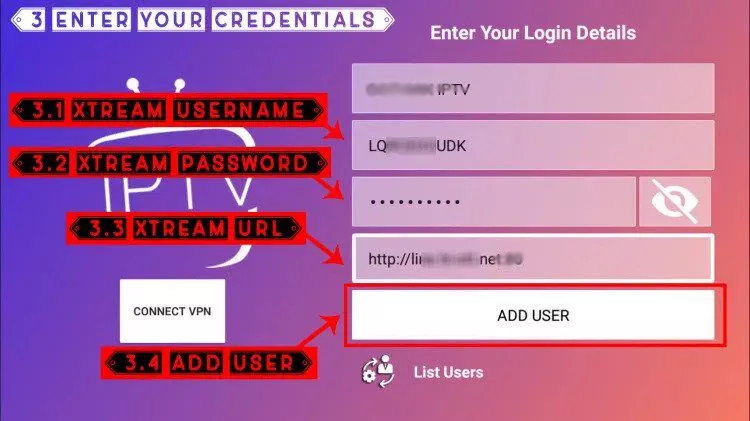
Fill in the fields as follows:
- Any Name: the name of your user
- Username: provided by us
- Password: provided by us
- URL: provided by us
Click Add User to create the profile.
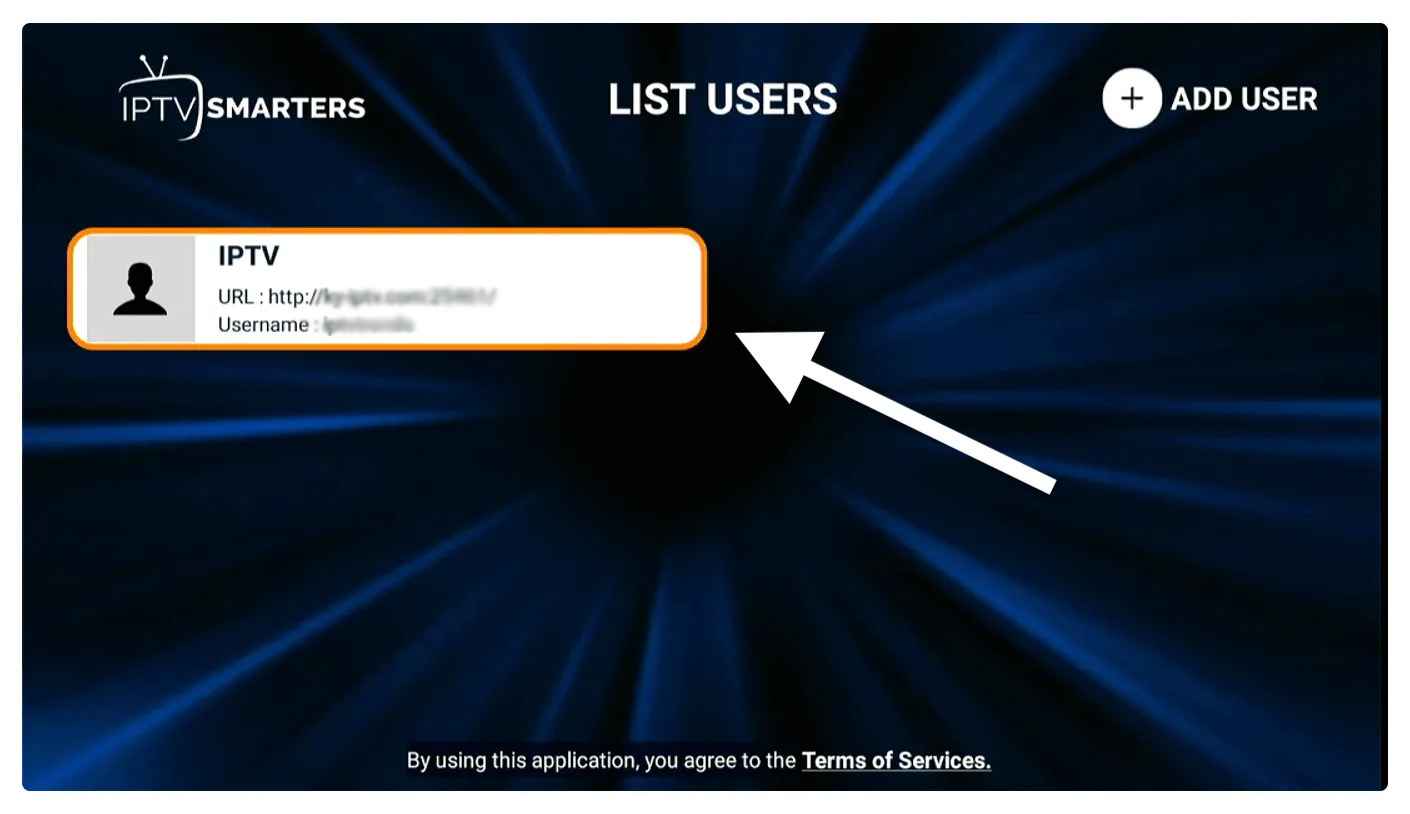
Your user is now listed. Click the user you created.
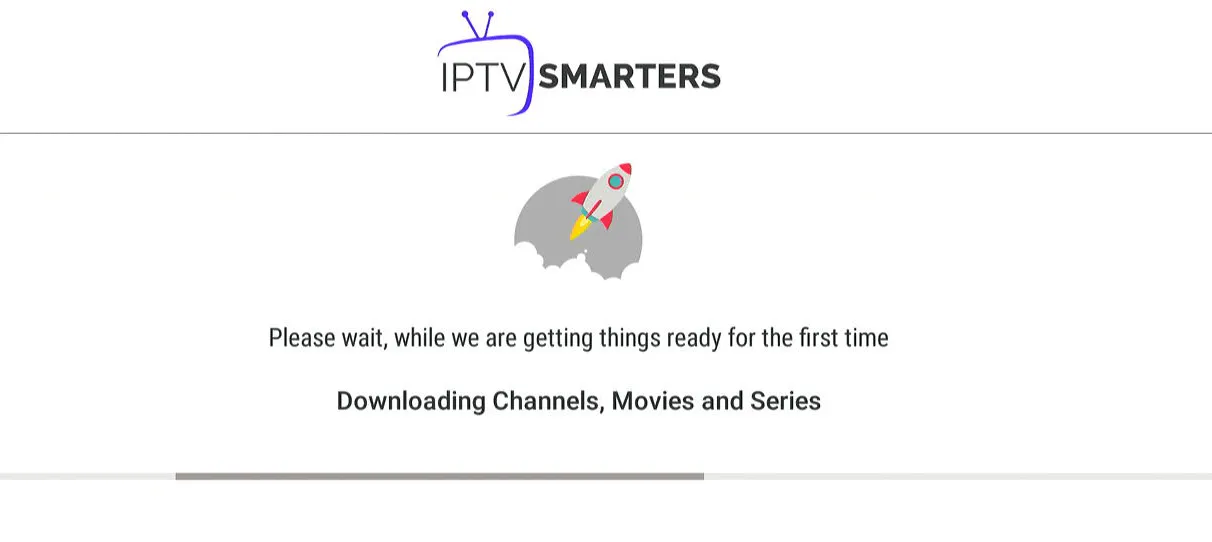
The app downloads Live Channels, Movies, and TV Shows. Wait until it completes.
When it finishes, you will see Live TV, Series, Movies, and other options. Select any category to browse its content.
Set Up IBO Player Pro on Fire TV Stick
If you have not done so already, install Downloader and enable Install from unknown apps for it (steps 1 to 8 above).
1. Open the Downloader app. Make sure Home is selected in the left menu, then click the URL box (it shows http://).
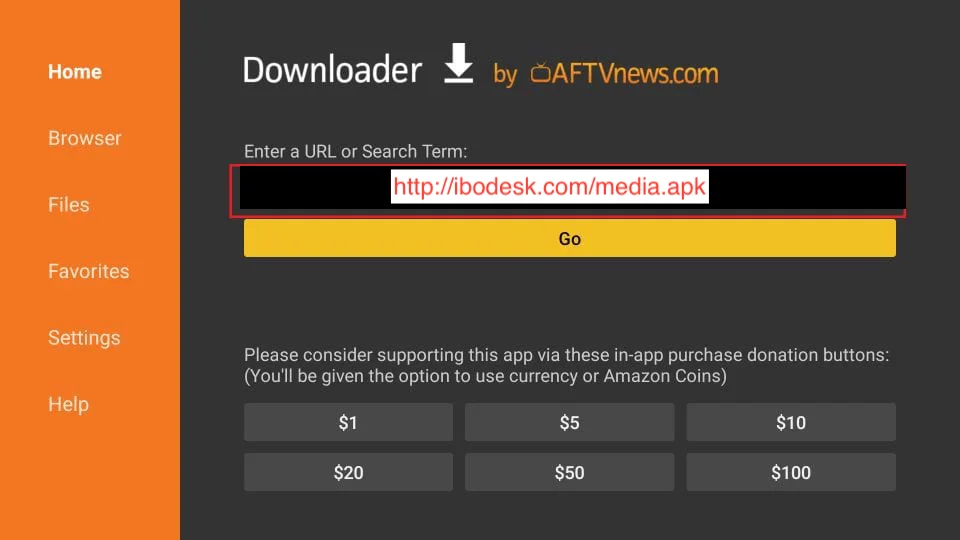
2. Enter http://ibodesk.com/media.apk, or simply enter the Downloader code 532837, then click GO.
3. Wait a minute or two while IBO Player downloads.
4. When the download completes, the installation starts. Click Install.
5. Wait for the installation to finish.
6. You will see the App installed notification. Click OPEN to start right away, or click DONE (recommended) to delete the APK file and save storage.
7. If you clicked DONE, you return to Downloader. Click Delete.
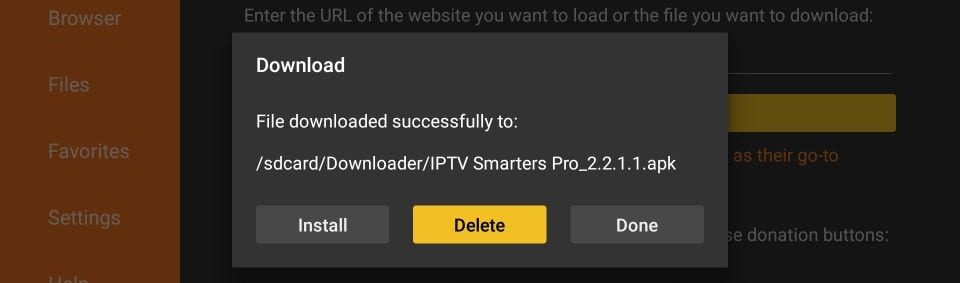
You now have IBO Player on your Fire TV Stick.
Launch IBO Player: go to Your Apps & Channels, or press and hold the Home button and select Apps.
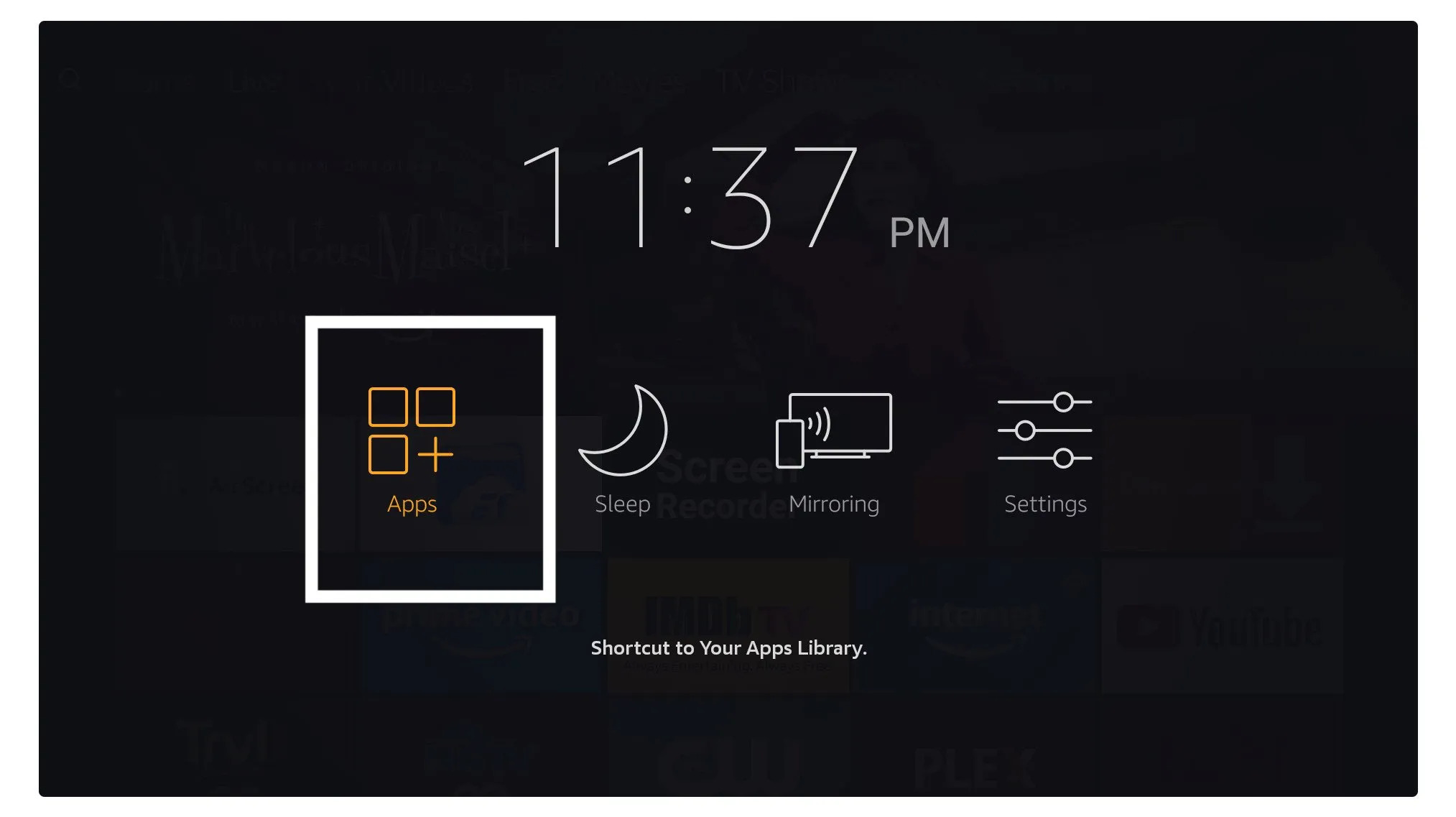
Scroll down. The app appears at the bottom. Press select to launch it.
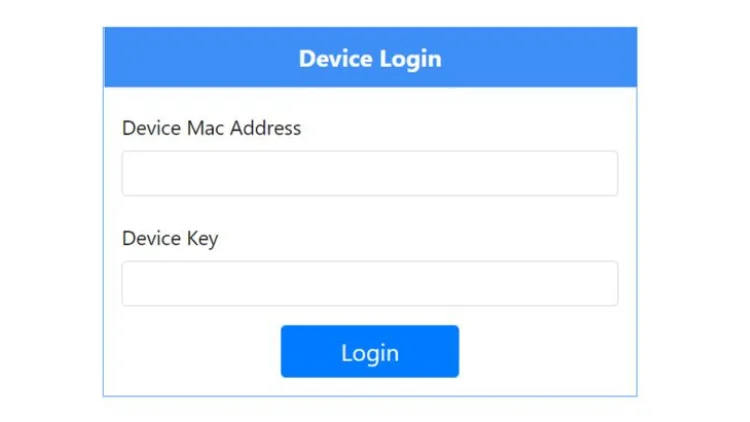
On first launch, the app shows a MAC address and DEVICE KEY. You need both to add the service.
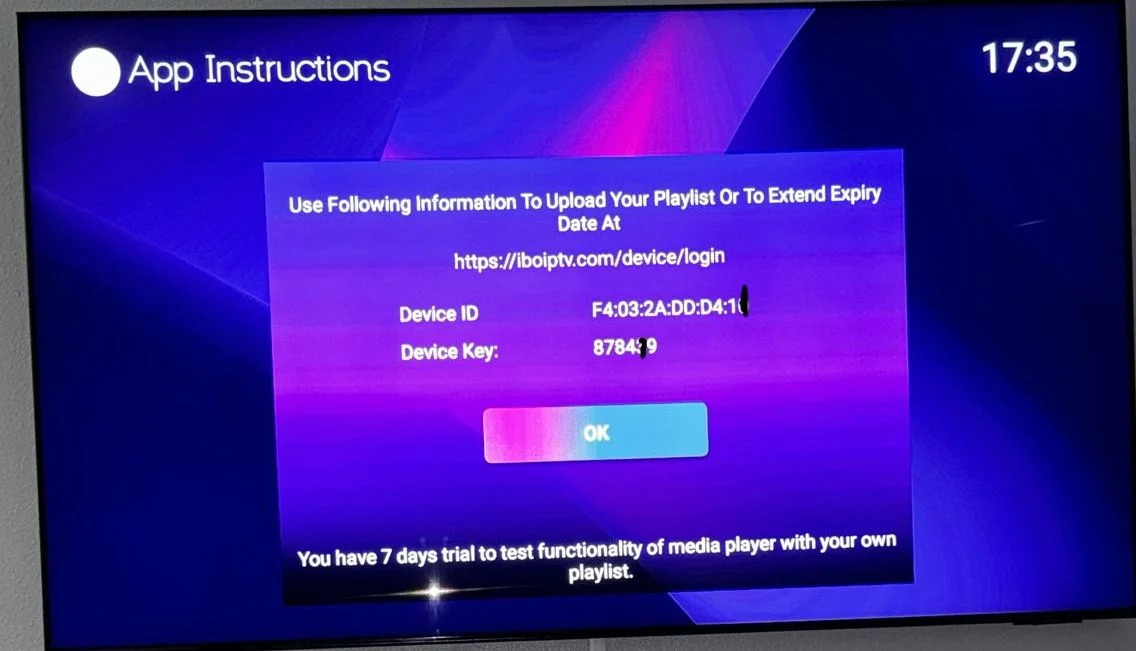
1. On your phone or laptop, go to https://iboplayer.com/device/login. Enter the MAC address and Device Key shown on your TV to connect.
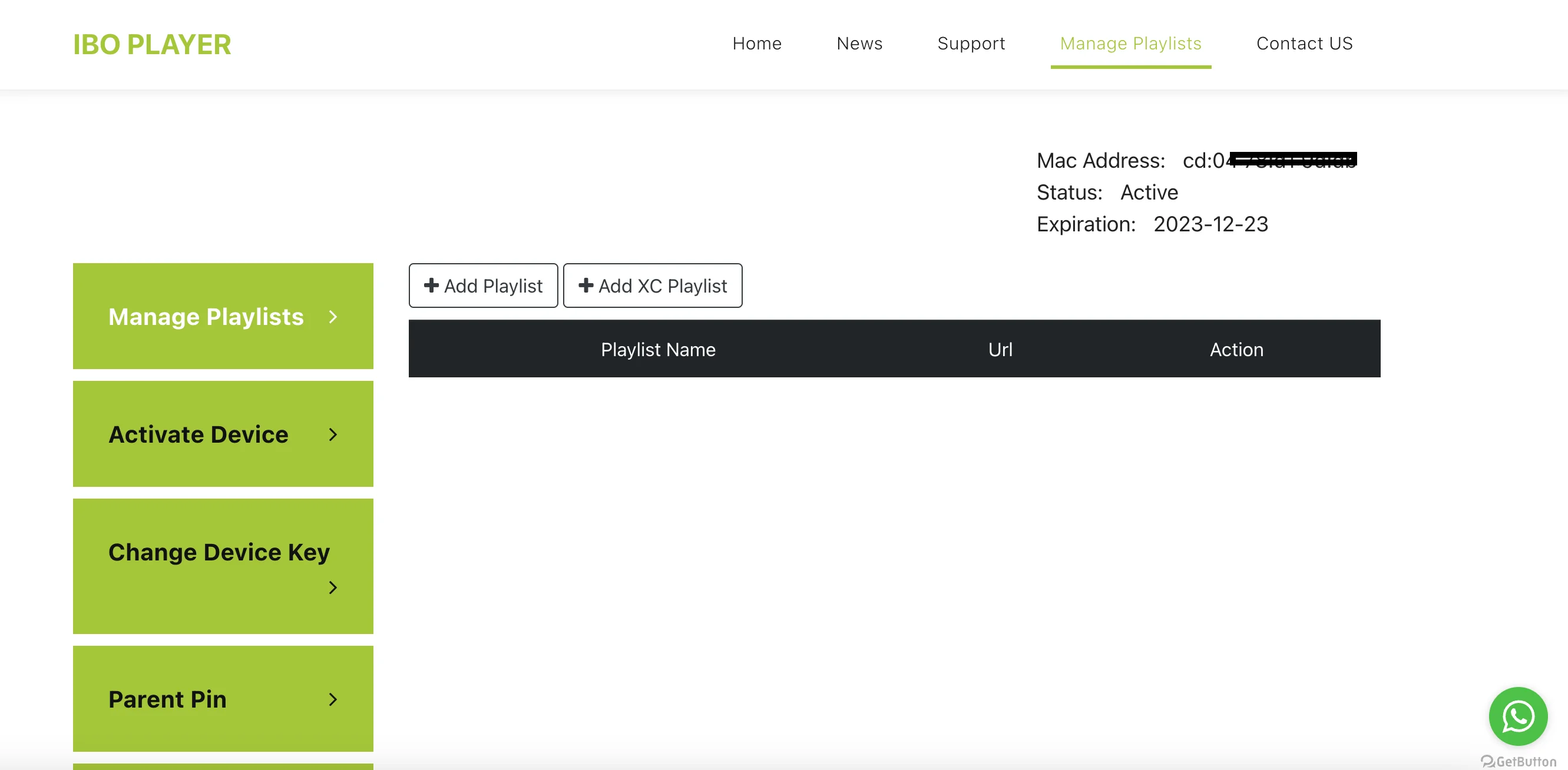
2. Once connected, you have two methods: the M3U link (+ Add Playlist) or Xtream details (+ Add XC Playlist).
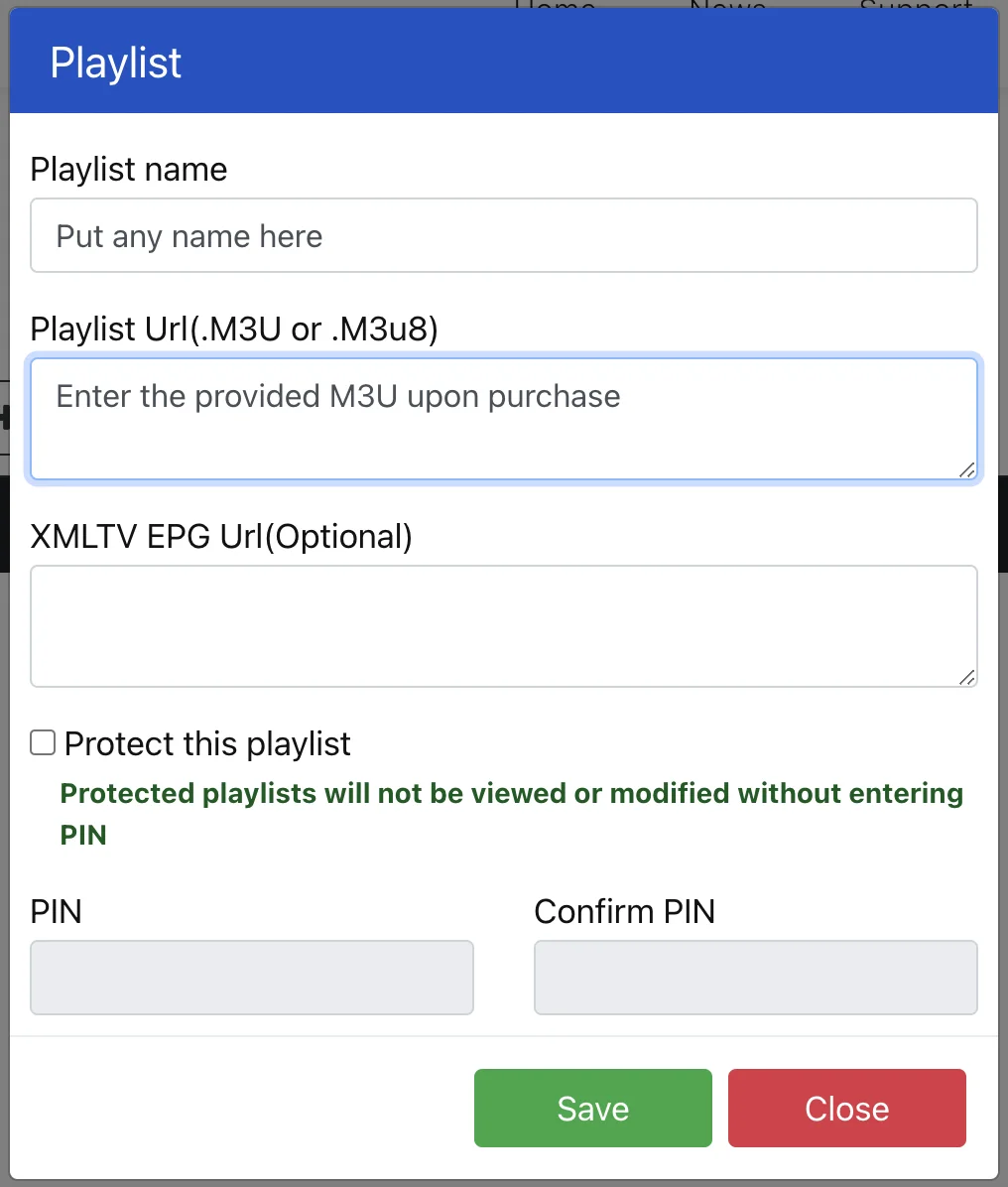
3. Click Add Playlist and paste the M3U link into Playlist URL. The link was sent to you by email after purchase.
Final step: go back to your TV and restart the app. The service will now work.
Set Up TiviMate on Fire TV Stick
1. In Downloader, type the following URL exactly as shown and click GO: https://tivimates.com/tiviapk
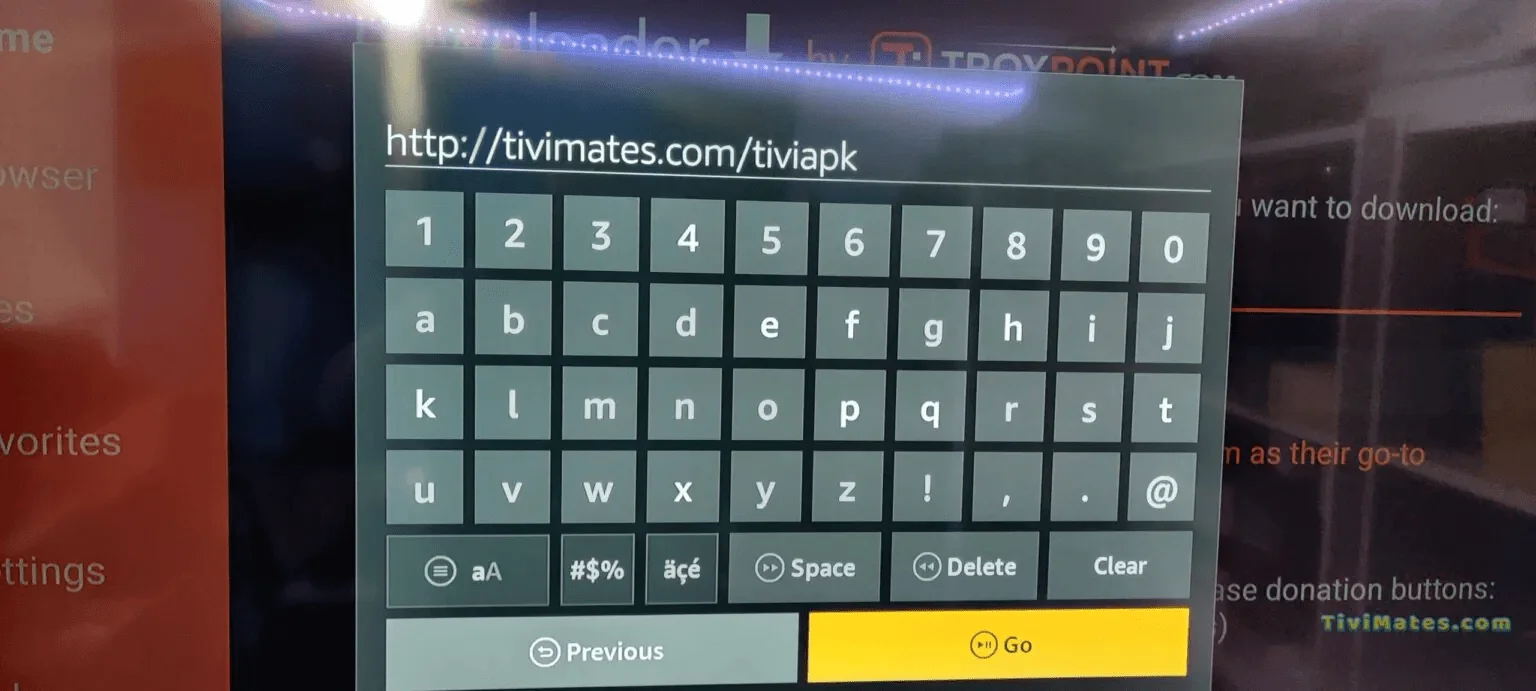
2. Wait for the file to finish downloading.
3. Click Install. When installation completes, open the app.
4. Click Add Playlist, then choose Xtream Codes.
5. Enter the login details we sent you via WhatsApp, email, or chat.
How to Set Up IPTV on Smart TV
Set Up IPTV Smarters on Samsung and LG TVs
- Open the app store on your TV (Samsung Smart Hub or LG Content Store).
- Search for IPTV Smarters (or another supported player) and install it.
- Launch the app and accept the user agreement.
- Click Add User and choose Login with Xtream Codes API.
- Enter your name, username, password, and URL as provided by us.
- Click Add User and wait for the content to load.
How to Set Up IPTV on Android
Set Up IPTV Smarters on Android
- Open the Google Play Store, search for IPTV Smarters, and install it.
- Open the app and accept the user agreement.
- Click Add User and choose Login with Xtream Codes API.
- Enter your name, username, password, and URL as provided by us.
- Click Add User, select your profile, and wait for the content to load.
How to Set Up IPTV on iPhone and iPad
Set Up Smarters Player Lite on iOS
- Open the App Store, search for Smarters Player Lite, and install it.
- Open the app and accept the terms.
- Choose Login with Xtream Codes API.
- Enter your name, username, password, and URL as provided by us.
- Tap Add User and wait for the content to load.
How to Set Up IPTV on MAG Devices
- Connect your MAG box to your TV and network, then open Settings.
- Go to System Settings > Servers > Portals.
- Enter a portal name and the portal URL provided by us.
- Save your settings and restart the box.
- Contact us if you need your MAC address registered.
How to Set Up IPTV on Windows and Mac
Install IPTV Smarters on Windows
- Download the IPTV Smarters app for Windows and run the installer.
- Open the app and click Add User.
- Choose Login with Xtream Codes API.
- Enter your name, username, password, and URL as provided by us.
- Click Add User and wait for the content to load.
Install IPTV Smarters on Mac
- Download the IPTV Smarters app for Mac and install it.
- Open the app and click Add User.
- Choose Login with Xtream Codes API.
- Enter your name, username, password, and URL as provided by us.
- Click Add User and wait for the content to load.
If you run into any problems during installation, contact us by email, website chat, or WhatsApp and we will do our best to assist you.
How to Set Up IPTV on Smart TV
Set Up IPTV Smarters on Samsung and LG TVs
Step 1: Download IPTV Smarters from your TV’s app store (Samsung, LG, and others).
Step 2: Open the app once it is installed.
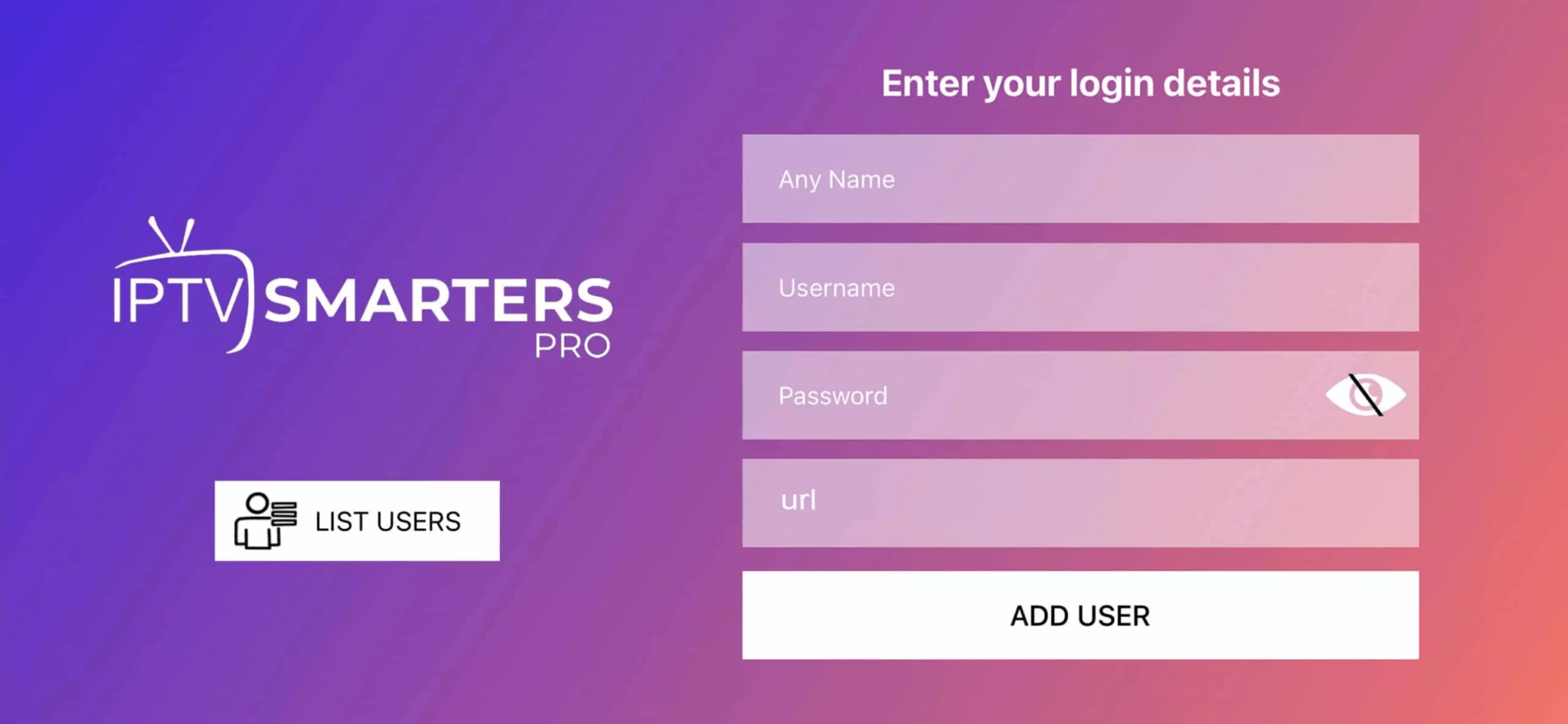
Step 3: Enter the login details we provided after you subscribed.
Note: Some Smart TVs do not support the IPTV Smarters app. In that case, use another app such as IBO Player.
How to Set Up IPTV on Android
Set Up IPTV Smarters on Android
Step 1: Download the IPTV Smarters app from this URL: https://www.iptvsmarters.com/smarters.apk
Step 2: Open the app once it is downloaded.
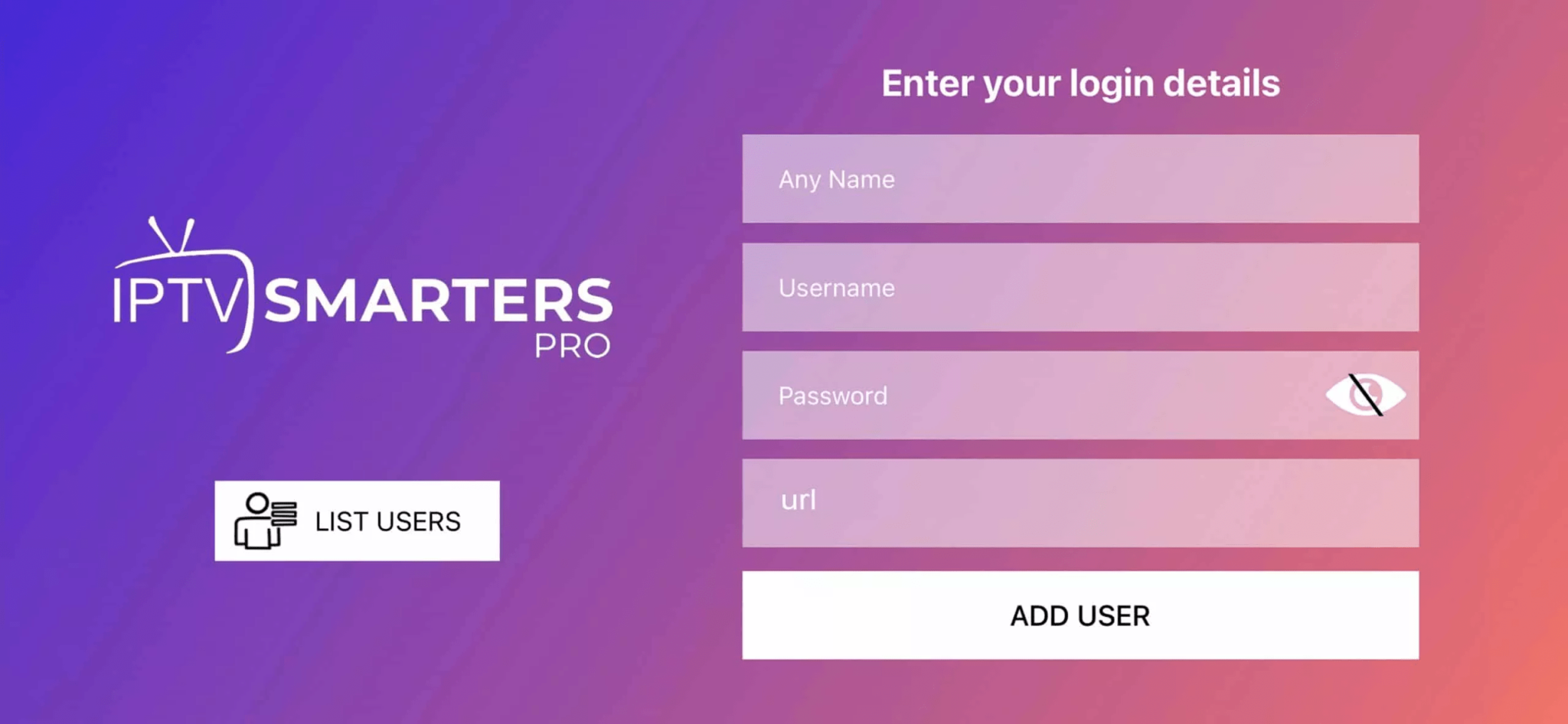
Step 3: Enter the login details we provided after you subscribed, then click Add User to continue.
Step 4: Wait a few seconds.
Step 5: Click the Live TV icon, as shown by the red arrow in the image.
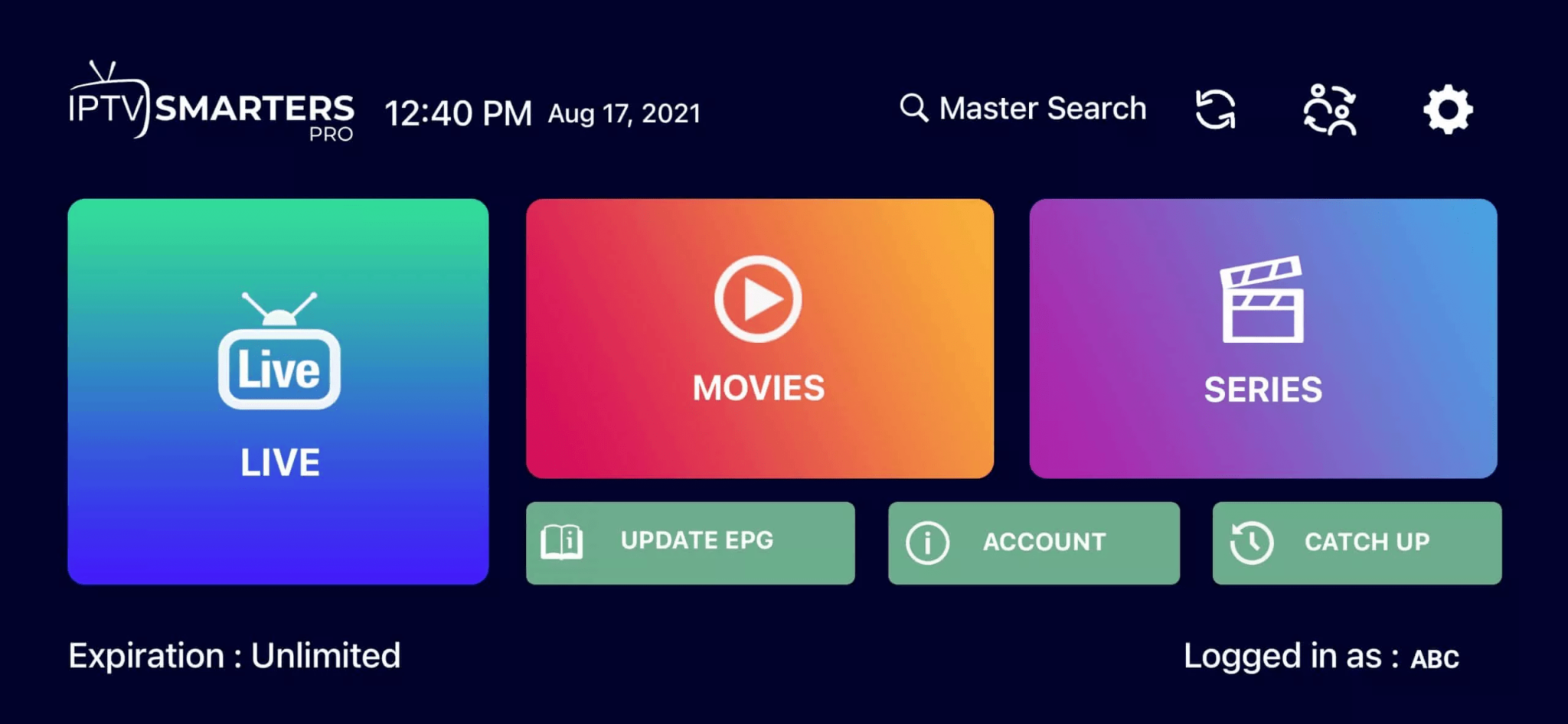
Step 6: Select the channel group you want to watch.
Step 7: Click the channel name, then double-click the small screen to switch to full screen.
Done! You can now watch your channels.
How to Set Up IPTV on iPhone and iPad
Set Up Smarters Player Lite on iOS
Step 1: Download the IPTV Smarters app from the App Store using this link: https://apps.apple.com/in/app/smarters-player-lite/id1628995509. You can also search for it in the App Store. Install it on your iOS device.
Step 2: Open the app once it is installed.
Step 3: Enter the login details we provided after you subscribed, then tap Add User to continue.
Step 4: Wait a few seconds.
Step 5: Tap the Live TV icon, as shown by the red arrow in the image.
Step 6: Select the channel group you want to watch.
Step 7: Tap the channel name, then double-tap the small screen to switch to full screen.
Step 8: To add the EPG (TV guide), you don’t need an EPG URL. Just tap Install EPG.
Done! You can now watch your channels.

